Typography & Color
Typography
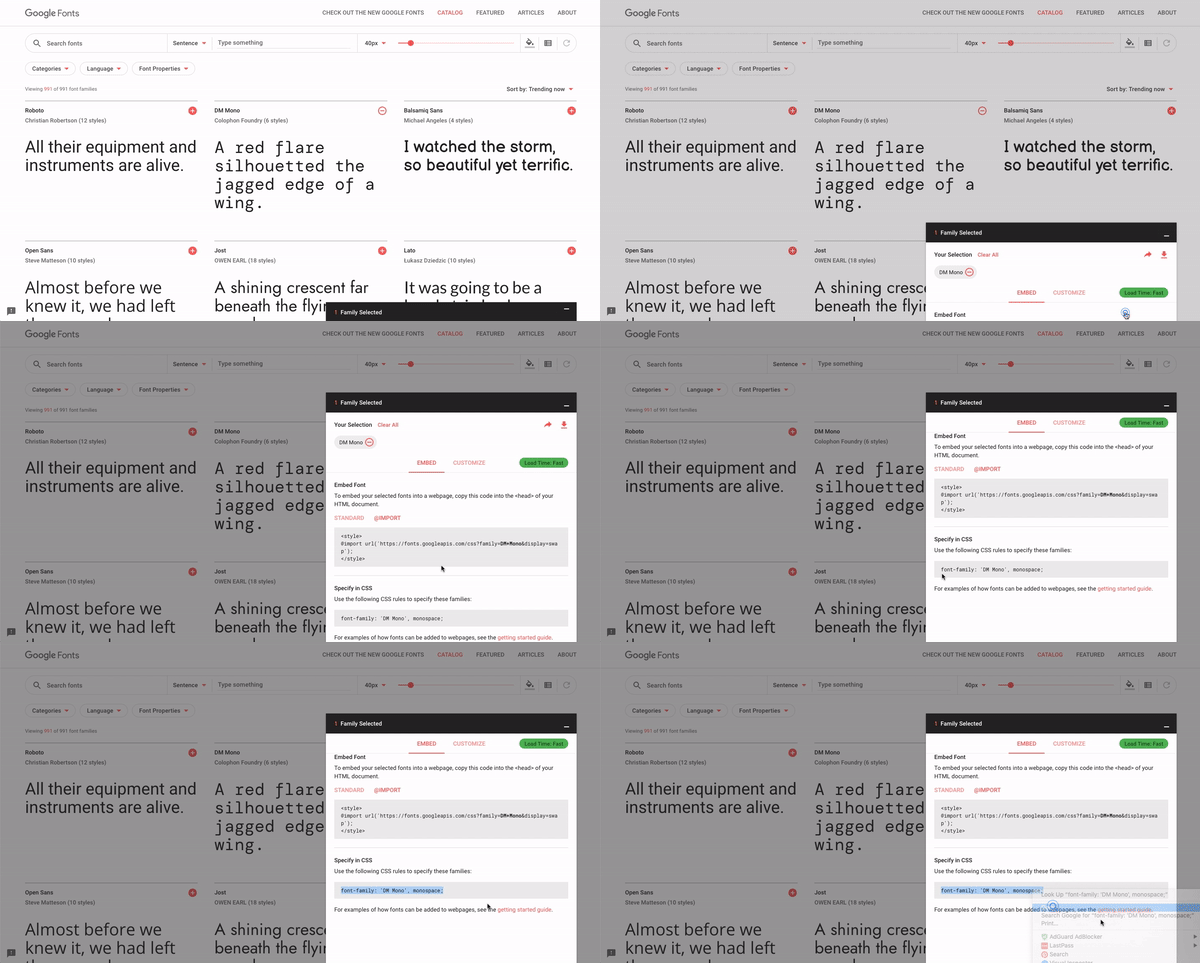
To add or change the typeface, the new font needs to be imported and the new css rules need to be applied in the main.css file which can found in the css folder.
The @import line,
		  /* ----- FONTS ----- */

			@import url('https://fonts.googleapis.com/css?family=Work+Sans:400,700&display=swap');
In order for the font to be displayed and rendered in browsers, the font-family and font-weight classes needs to be edited.
				h2.logo {
				font-family: inherit;

				font-weight: 700;

				.

				.

				.

				}
How To Use Google Fonts
- Visit Google Fonts
- Search for the font you like
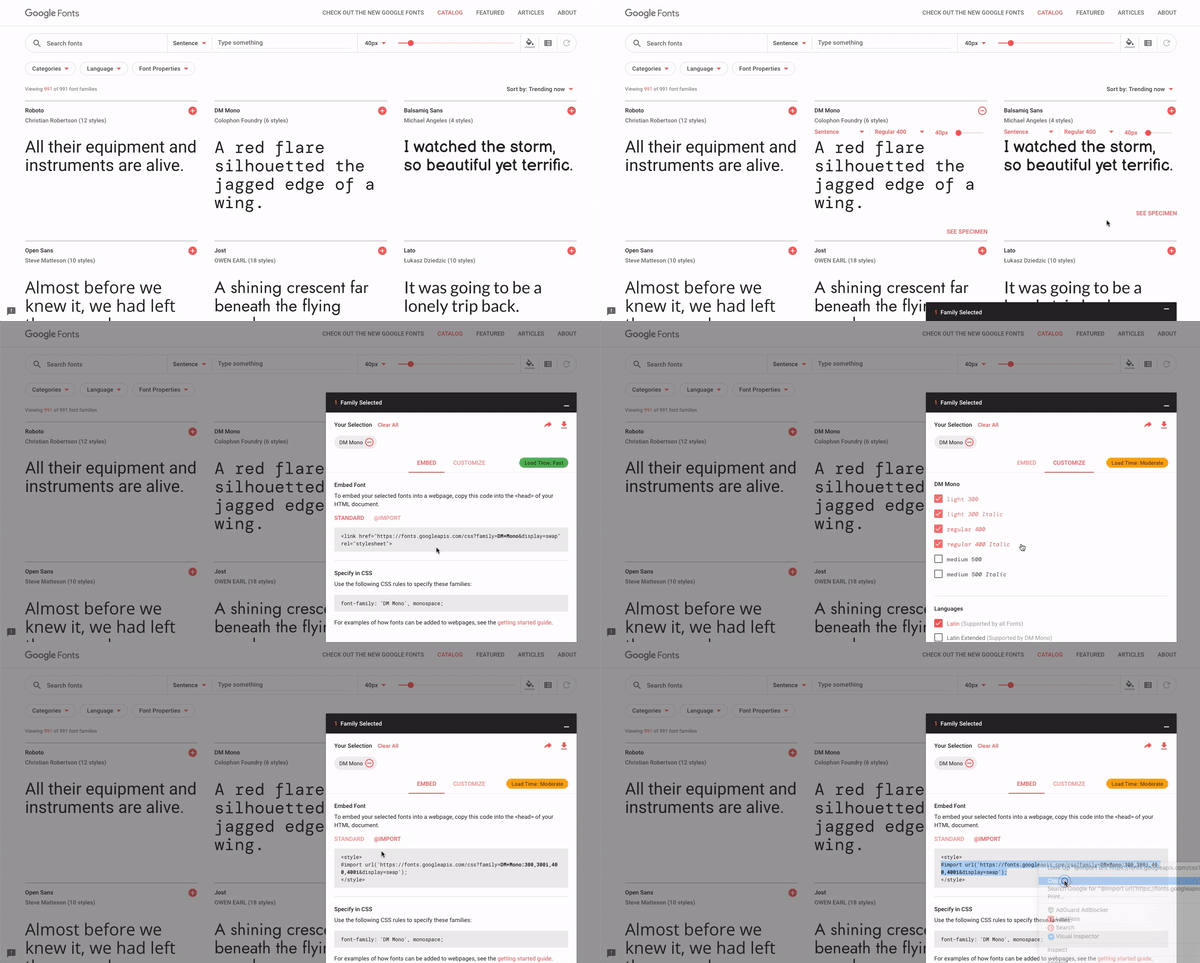
- Click on + button on the upper right hand corner of each font to add to your basket. You can add multiple fonts.
- Click on the selection drawer to show all the fonts you've chosen
- Click on the CUSTOMIZE tab to add/remove different font weights and styles
- Click on the EMBED tab, then on the @IMPORT tab to get the html code
- Copy and paste the @import code into the main.css file
How To Get The @IMPORT Line
How To Get The CSS Rule For Font-Family
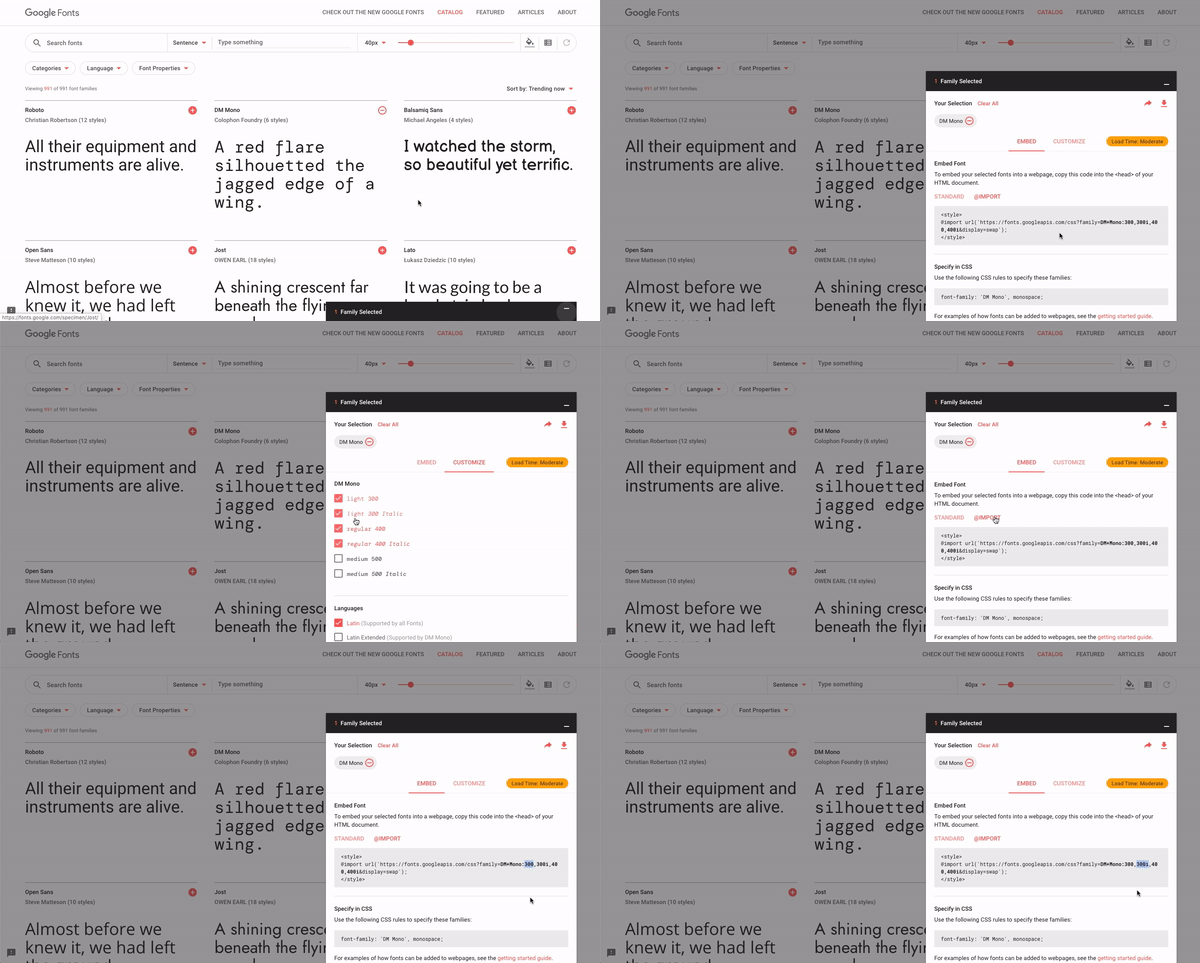
How To Get The CSS Rule For Font-Weight
There are two main areas to apply the new css rules for the new font.
- Body
- Headings (h1, h2, h3, h4, h5, h6)
Additional areas to apply the new font rules are,
- Logo Typeface
- Nav Elements
- Mobile Nav Elements
- Button Labels
Body
Open the main.css file found in the css folder. Locate the body class below and replace the font-family and font-weight rules with the new css rules.
You can find the numerical values for font-weight in the CUSTOMIZE tab. The numerical values represent the different font styles such as regular, medium, bold, italics.
			body {
			  margin: 0;

			  padding: 0;

			  background: #0d0d0d;

			  font-family: 'Work Sans', sans-serif;

			  font-weight: 400;

			  line-height: 1.5;

			  color: #707070;

			  overflow-x: hidden;

			  -webkit-font-smoothing: antialiased;

			  -moz-osx-font-smoothing: grayscale;

			  }
Headings (h1, h2, h3, h4, h5, h6)
Find the headings classes below and edit the css rules for font-family and font-weight. You can leave the font-family = inherit if you want the heading to inherit the same font-family rule as the body.
			h1, .h1,

			h2, .h2,

			h3, .h3,

			h4, .h4,

			h5, .h5,

			h6, .h6 {

			font-family: inherit;

			font-style: normal;

			font-weight: 700;

			color: inherit;

			text-rendering: optimizeLegibility;

			}
Logo Typeface
Locate the class for the logo below and edit the font-family and font-weight properties.
				h2.logo {
				font-family: inherit;

				font-weight: 700;

				.

				.

				.

				}
Nav Elements
Locate the class for the nav elements below and edit the font-family and font-weight properties.
		  	/* ----- Menu Links ----- */

				.menu li a {
				font-family: inherit;

				font-weight: 700;

				.

				.

				.

				}
Mobile Nav Elements
Locate the class for the mobile nav elements below and edit the font-family and font-weight properties.
		  	/* ----- Mobile Menu ----- */

				.menu-mobile-nav {
				font-family: inherit;

				font-weight: 700;

				.

				.

				.

				}
Button Labels
Locate the button class below and edit the font-family and font-weight properties.
				.button {
				font-family: inherit;

				font-weight: 700;

				.

				.

				.

				}
Colors
No clue on what color values are? Find your color using a color picker.
Text Colors
Text color for the whole site can be found in the body class below. Just change the color property value.
			body {
			  margin: 0;

			  padding: 0;

			  background: #0d0d0d;

			  font-family: 'Work Sans', sans-serif;

			  font-weight: 400;

			  line-height: 1.5;

			  color: #707070;

			  overflow-x: hidden;

			  -webkit-font-smoothing: antialiased;

			  -moz-osx-font-smoothing: grayscale;

			  }
Button Colors
Find the button class and change the color and background-color property values.
			.button {

		  color: #fff; <-- text color inside the button

		  background-color: #ff3a1c;  <-- button background color

				.

				.

				.

			}
Logo Typeface
Find the h2.logo class and change the color property value.
				h2.logo {
				color: #707070;

				.

				.

				.

				}
Nav & Mobile Nav Elements
Find the .menu li a and .menu-mobile-nav classes and change the color property value.
		  	/* ----- Menu Links ----- */

				.menu li a {
				color: #707070;

				.

				.

				.

				}


		  	/* ----- Mobile Menu ----- */

				.menu-mobile-nav {
				color: #707070;

				.

				.

				.

				}
Headings (h1, h2, h3, h4, h5, h6)
Find the heading classes and change the color property value. You can also change individual heading classes such as just h1. The below changes h1, h2, h3, h4, h5, and h6 classes together.
				h1, .h1,

				h2, .h2,

				h3, .h3,

				h4, .h4,

				h5, .h5,

				h6, .h6 {

				color: #707070;

				.

				.

				.

				}
Hover Colors
Hover colors are colors that change when users interacts with an element such as a link or a button. They can be considered accent colors in that they are used for emphasis and to draw attention to key calls of actions. Two areas that use accent colors are,
- Text Links
- Buttons
Hover Color For Text Links
Find the text link hover class and change the color property value.
			a:hover,

			a:focus,

			.text-link:hover {

		  color: #ff3a1c;

				.

				.

				.

			}
Hover Color For Buttons

Find the button hover class and change the color and background-color property values.
			.button:hover,

			.button:focus,

			.button:active {

		  color: #fff; <-- text color inside the button

		  background: #ff3a1c;  <-- button background color

				.

				.

				.

			}